Debt snowball spreadsheet: how to plan your debt payoff
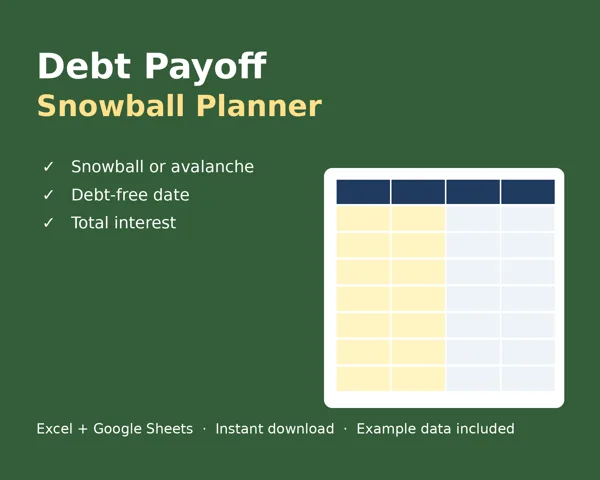
A debt snowball spreadsheet in Google Sheets turns a list of debts into a month-by-month payoff plan you can actually follow. Instead of spreading spare money thinly across everything, you focus extra payments on one debt at a time and roll each cleared payment into the next. This guide explains how the snowball and avalanche methods compare, what columns your spreadsheet needs, and how to keep the plan going.
Snowball vs avalanche: which order?
Both methods start the same way: you pay the minimum on every debt, then put any extra money towards one target debt. They differ in which debt you target first.
- Snowball: target the smallest balance first. You clear individual debts sooner, which many people find motivating.
- Avalanche: target the highest interest rate first. This usually means paying less interest overall.
Neither is right for everyone. A debt snowball vs avalanche calculator lets you compare the payoff date and total interest for your own numbers before you choose. If your debts have similar rates, the difference may be small; if one has a much higher rate, avalanche may save noticeably more.
The columns your spreadsheet needs
Set up one row per debt with these columns:
- Debt name (for example, credit card or car loan)
- Current balance
- Interest rate (APR)
- Minimum monthly payment
- Payoff order (1, 2, 3...)
Then add one cell for the total amount you can pay each month across all debts. The extra above the sum of minimums is your "snowball".
Building the month-by-month plan
On a second sheet, make one row per month and one column per debt. Each month, for each debt:
- add interest: balance × APR ÷ 12 (a simple estimate; your lender's method may differ)
- subtract the payment: the minimum, plus the snowball for the target debt
- when a debt reaches zero, add its minimum payment to the snowball for the next debt
In Google Sheets, functions such as MIN and MAX help stop a balance going below zero, and conditional formatting can colour a debt green once it is cleared. A simple chart of total balance over time shows your progress.
A worked example
Illustration only, with made-up figures and simplified interest. Suppose you have three debts: a store card with €400 at 25% APR (minimum €25), a credit card with €1,500 at 20% (minimum €45) and a personal loan with €3,000 at 9% (minimum €90). You can pay €260 a month in total, so the snowball is €100.
- Snowball order: store card, then credit card, then loan. The store card gets €125 a month and clears in a few months; its €125 then joins the credit card's payment.
- Avalanche order: here the store card also has the highest rate, so the first target is the same; after that, avalanche and snowball also agree (credit card, then loan). With other figures, the orders can differ.
Your spreadsheet does this arithmetic for you and shows a debt-free date for each method.
Keeping the plan going
- Update monthly. Enter actual balances from statements so the plan stays accurate.
- Avoid new borrowing. Adding new debt undoes progress; a small emergency fund can help avoid it.
- Use windfalls. Put part of any bonus, refund or gift money towards the target debt.
- Track visually. Colouring in a chart or crossing off a balance helps motivation. The Debt-Free Journey Tracker has printable colour-in charts for this.
- Review your budget. If you are starting in January, a new year budget reset can free up money for the snowball.
When to get help
A spreadsheet is a planning tool, not advice. If you are missing payments, borrowing to cover essentials, or contacted by collectors, speak to a free service before choosing a method. If debt is worrying you, free and impartial help is available: in the UK from MoneyHelper, StepChange or National Debtline; in Ireland from MABS; in Portugal from the DECO consumer association. No endorsement is implied.
Plan next Christmas without new debt
Once your plan is under way, saving a little each week for Christmas can stop the cycle starting again. See how to save for Christmas weekly and our guide to Christmas on a budget in the UK.
A ready-made spreadsheet
If you prefer not to build it yourself, the Debt Payoff Snowball Planner (€9) lets you enter up to 10 debts, choose snowball or avalanche, and see a month-by-month plan for up to 30 years, your debt-free date, total interest (estimated at APR/12) and a chart. It is an Excel file that also opens in Google Sheets.
For a January reset that also covers budget, debt tracking and meal planning, see the New Year Money Reset Bundle (€20.99; bought separately €32.99).
FAQ
What is a debt snowball spreadsheet?
A spreadsheet that lists your debts, orders them smallest balance first, and plans monthly payments so each cleared payment rolls into the next debt.
Is snowball or avalanche better?
Avalanche usually costs less interest; snowball clears individual debts sooner, which some people find motivating. Compare both with your own numbers.
Can I make a debt snowball spreadsheet in Google Sheets?
Yes. List debts with balance, APR and minimum payment, add a monthly total, then build a month-by-month sheet that adds interest and subtracts payments.
Is this financial advice?
No. It is general information. For personal help with debt, contact a free, impartial service such as MoneyHelper, StepChange, MABS or DECO.
Written with AI assistance. General information only, not financial, tax, legal or travel advice; no particular outcome is promised. Price includes VAT where applicable (collected by Lemon Squeezy, our merchant of record). Excel is a trademark of Microsoft; Google Sheets is a trademark of Google LLC. Fernbrook Guides is not affiliated with, endorsed or sponsored by Microsoft or Google.